
Website Page Checker: Turn SEO, Speed and Accessibility Findings into a Fix List
Use a single-page check to prioritize SEO, loading and accessibility work. Read Lighthouse context, separate automated findings from manual review, and verify the repairs.

7 years of experience building and operating brand websites, specializing in website development, paid advertising and SEO. Built a brand website from launch to US$10 million in annual sales.
The Short Answer
A page check is most useful when its findings become a short, prioritized repair list. Choose the page and device setting, read the test context, and distinguish SEO findings, laboratory performance and automated accessibility checks. Verify the implemented repairs and test complete customer journeys manually before treating the work as finished.
Key takeaways
- Inspect one page for a clear reason.
- Keep lab metrics separate from real-user evidence.
- Assign each repair an owner and an observable acceptance check.
A website report can make an ordinary Tuesday feel like an emergency. There are red labels, unfamiliar abbreviations and a number that seems to be judging several months of work. Someone forwards a screenshot with the message “Can we fix this?” Nobody specifies what “this” means. By lunchtime, three people are discussing a redesign and the original problem is still an unnamed image.
A useful page check should make the next decision clearer. It should show what was inspected, what was observed and what deserves investigation. The DTCUP Website Page Checker brings technical SEO, laboratory speed measurements and supported automated accessibility checks into one public-page workflow. You supply a URL, choose a device and select the checks. The result gives you evidence to work with, rather than a reason to start rearranging your entire website immediately.
This guide explains how to use that evidence. We will work with an illustrative small-business workshop page: a public page describing a class and inviting people to book. The example is a teaching scenario, not a claim about a customer or a measured improvement. Its purpose is to show how an owner, marketer or developer can turn an inspection into a practical sequence of actions.
The goal is not to collect a beautiful report. It is to make the page easier to understand, use and maintain. A report that produces three well-chosen repairs is more valuable than one that travels through six inboxes wearing a very impressive filename.
Start with one page and one reason to inspect it
Choose the URL because it matters to a visitor task. For the workshop business, the class page is a sensible starting point because people use it to decide whether the session is appropriate and how to book. A homepage may also matter, but it cannot stand in for every product, article or form. Different templates and content can create different problems.
Write a one-sentence inspection question before opening the tool. For example: “Can a first-time mobile visitor read the workshop details and reach the booking action without obvious technical friction?” This question keeps the report connected to an actual experience. It also reminds you to review the booking action manually, because the automated scan covers the initial page load rather than the complete booking process.
Use the public page URL you intend to review. A draft inside an authenticated dashboard is a different environment. So is a file download or a private preview that requires credentials. The checker accepts public HTML pages. If the page cannot be read in that scope, choose an appropriate review method rather than assuming an unsuccessful scan is a defect in the page itself.
Record the reason for the check and the page version in your own task notes. Perhaps a new hero image was added, a theme was updated or the booking section was rebuilt. That context helps you interpret what you find. Without it, a report can become a grab bag of observations with no clear relationship to the change the team is trying to assess.
Do not begin with every page you can think of. Start with a representative, important page and understand the findings. Then decide which other page types need inspection. A class detail page, an article and a contact page may share navigation but differ substantially below it. Sampling deliberately is more useful than repeatedly checking the same template and calling that a site audit.
Set up a check that answers the right question
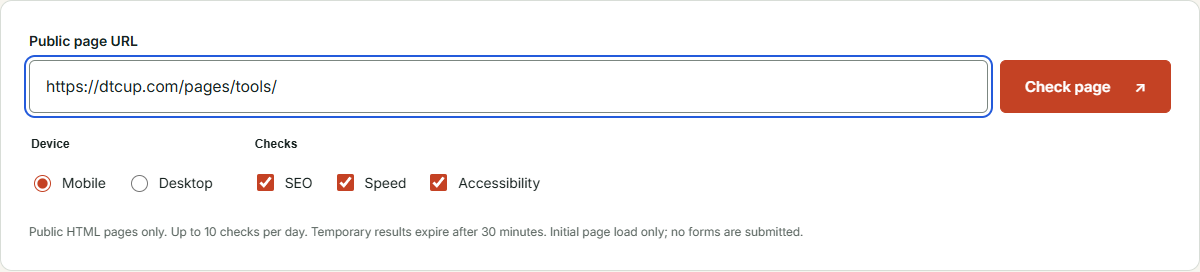
Open the tool, enter the URL and choose Mobile or Desktop. Select SEO, Speed and Accessibility according to the review you need. All three can be useful for an initial inspection, while a focused follow-up may need only the relevant category. Make the choice consciously so that nobody later assumes an unchecked category was tested and passed.
For the workshop scenario, begin with Mobile if the question concerns the experience on a smaller screen. A desktop result will not answer every mobile question. The interface makes the device choice visible, which helps keep the test attached to its context. Write that context beside any finding you share, especially if other people are running their own checks.
Start the check and allow it to finish. Read any failure or limitation messages before interpreting the output. A blocked scan, an unavailable module and a completed inspection are different states. If one category fails while another completes, use the completed evidence within its scope rather than presenting the whole run as either a total success or a total failure.
The current tool allows up to ten checks per day and keeps temporary results for thirty minutes. Plan a small number of purposeful runs. Repeatedly pressing the button because the score is not the number you hoped for does not improve the underlying page. It mostly turns a diagnostic exercise into a very low-stakes slot machine.
The checker does not require a login or an email submission. That makes it convenient for a quick inspection before deciding whether deeper work is needed. It also does not maintain a permanent report library for you. If the evidence needs to become part of a project, use the available download or print options deliberately and keep the relevant notes with the work.
Read the report context before the colorful parts
The first useful details are the tested URL, final destination, device and time. Confirm that the report describes the page you intended to inspect. Redirects may lead to a different address, and a public page may change between checks. These details are less exciting than a score, but they establish what the score and findings actually refer to.
Read the environment and limitations as part of the result. The speed test is an isolated laboratory run, and the accessibility check examines the initial rendered document. The checker does not sign in, complete a purchase or explore every state of a menu. Those boundaries determine which conclusions you can reasonably draw from the report.
Notice the distinction between an issue and something marked for review. A declared canonical URL, for example, needs context: the tool can show its target, but a person must decide whether that is the intended equivalent page. Automatically treating every review item as an error creates unnecessary changes. Automatically ignoring review items loses useful questions.
Also distinguish a passed check from a broad promise. A page can have an image alt attribute while the words inside it are unhelpful. A title can exist while describing the page poorly. A supported accessibility rule can pass while a later interaction remains difficult. The report gives evidence about specific checks, and your review supplies the surrounding meaning.
If a limitation affects the part of the page you care about, carry it into the task note. “Initial page checked; expanded booking form still needs manual review” is clear. “Accessibility done” is not. Precise language prevents one small inspection from growing into an imaginary certification as it moves through the organization.
Turn the summary into questions, not instant edits

Use the summary to decide where to look first. It can point you toward technical SEO, speed or accessibility findings, but the underlying evidence should drive the repair. For our workshop page, a missing document language and an unclear canonical target would lead to different investigations even if both appear near the top of the report.
Open the relevant finding and read its explanation, affected elements and recommendation. Identify the actual page element or declaration. If the report mentions an image, find that image. If it mentions a title, read the title in context. This step sounds obvious until a team spends an afternoon fixing the wrong template because the screenshot was cropped too enthusiastically.
Ask whether the condition is intentional. A page excluded from indexing may be deliberately temporary or unsuitable for search. A decorative image may correctly have empty alternative text. An unusual heading arrangement may need editorial improvement without being the catastrophic ranking problem someone feared. Context determines the correct action.
Then ask who can resolve it. An editor may rewrite a title or link label. A developer may need to repair a shared component. A business owner may need to clarify what the page is supposed to promise. Assigning every finding to “the website person” often hides the real dependency and slows the work.
For each important item, write a question you can answer: Which page should this canonical reference? What information does this image convey? Which resource is delaying the main content? Can the booking control be reached with a keyboard? Questions create a path to evidence. A list of alarming labels creates a path to another meeting.
Review titles and descriptions as promises to the reader

The checker can identify the presence and duplication of title and description declarations on the inspected page. Use that starting point to review the words themselves. A title should tell a prospective visitor what this particular page is about. For a workshop, that might involve the subject, location or other genuine distinguishing information supported by the content.
Avoid writing a title that could be pasted onto every page with only one noun changed. The class overview, an individual workshop and a preparation article serve different purposes. Their metadata should reflect those differences. A technically present title that says very little is still an editorial opportunity, even if the structural check is satisfied.
Read the description as a concise invitation with accurate expectations. What will the reader learn or be able to do after opening the page? Do not add availability, pricing or guarantees unless they are current and verified. The workshop example can explain the session format without inventing a seat count or promising an outcome the business has not established.
If the page’s promise is unclear, revisit the content plan before polishing metadata. The Query Fan-Out Explorer can help explore related questions and possible content gaps. Treat its output as material to evaluate, then choose the questions that actually belong on this page. A longer list of topics is not automatically a better page.
Keep the final title, description, main heading and visible content consistent in meaning without making them mechanically identical. They have different jobs. The title introduces the page, the description sets expectations and the body delivers the substance. The checker helps you inspect the declarations; editorial judgment makes them useful to a person.
Give canonical and indexing findings the context they need
A canonical finding is an invitation to verify intent. Read the target and ask why this page points there. For the workshop business, a recurring event page and a dated session page may have distinct roles. Do not change the target simply because it looks different from the address bar. First understand the site’s content and indexing plan.
The report also shows detected indexing directives. If it finds noindex, determine whether that is deliberate. A page prepared for a private preview should not be made discoverable just to remove a review label. Conversely, a public page intended for search deserves investigation if its declarations conflict with that intent. The correct fix depends on the purpose of the page.
Absence of a detected noindex declaration does not prove that a page is indexed. Keep the claim narrow: this check did not detect that particular exclusion in the inspected evidence. If actual search indexing is the business question, use the appropriate search-platform evidence as a separate task. Do not ask a single-page inspection to impersonate every other system.
When crawler rules need a closer look, open the AI Bot & Robots Checker. Use it to examine the relevant rules and paths, keeping rule analysis separate from proof of actual crawler behavior. Together, the tools help organize the investigation: one exposes page evidence, while the other focuses on declared crawl instructions.
Document the intended outcome before making changes. “The public class overview should remain discoverable, while the internal preparation page should remain excluded” is an instruction a developer can work with. “Make all the warnings green” is not a content strategy. It is a request for the interface to stop making everyone uncomfortable.
Inspect headings, images and links as a reading experience
Read the heading list in order. Does it describe the page’s main idea and supporting sections? On the workshop page, useful sections might explain who the session suits, what happens, what to bring and how to book. The hierarchy should help a reader navigate the content rather than reflect whichever text happened to look attractive in a larger font.
Use image findings to identify missing attributes, then decide the correct treatment for each image. An informative photograph or diagram needs an accurate description of its useful content. A purely decorative flourish may need empty alternative text. The tool can expose a missing attribute, but it cannot replace knowing why the image is on the page.
Keep descriptions grounded in what is visible. If a photograph shows a table with materials, do not describe an instructor demonstrating a technique unless that actually appears. Avoid stuffing a description with location and service keywords. The visitor needs the image’s meaning, not a miniature advertisement trying to enter through a side door.
The checker samples certain internal links rather than recursively crawling the entire site. Review failed or unverified destinations in that sample, then decide whether broader link checking is warranted. A clean sample does not establish that every link works. It establishes that the inspected subset did not show the reported problem under that check.
For layout changes, Sketch to Website can help you draw a clearer section order before rebuilding the page. Use the inspection to identify the problem, then sketch the proposed reading path. That gives the redesign a purpose beyond making the same confusing information appear inside more fashionable rectangles.
Read speed results as measurements with a setting

The speed category runs Lighthouse and shows laboratory metrics alongside the test environment. Look at the measurements and the affected resources, not just the overall score. The result describes a particular run. A workshop page that loads under one tested condition has not thereby been measured across every visitor’s device and connection.
Google’s Lighthouse scoring documentation explains that the performance score combines metric scores and can vary as test conditions change. That makes it sensible to compare runs carefully and investigate the underlying measurements. A small movement in the headline number is not, by itself, proof that a recent edit caused a meaningful improvement or regression.
For the workshop scenario, inspect which visible content or resource is associated with a finding. Perhaps a large visual deserves attention, or a script needs investigation. Do not assume the first image you notice is responsible. Follow the evidence provided by the diagnostic and verify the proposed explanation before changing assets or removing functionality.
Keep essential functions in view while optimizing. A faster-looking test is not a good result if the booking action stops working or useful content disappears. After a change, inspect the page normally and complete the relevant manual journey. The goal is a usable page that performs well, not an unusually empty page that has very little left to load.
If the page includes a model, the Online 3D Viewer can help inspect the underlying asset separately. That local preview does not measure the deployed page’s performance. It helps distinguish an asset review from a page-loading investigation, so the person correcting the model and the person integrating it are not accidentally solving different problems under the same ticket.
Keep laboratory responsiveness separate from real-user INP
The checker explicitly does not provide configured real-user CrUX data, and laboratory Total Blocking Time should not be relabeled as INP. This distinction matters because a report can look authoritative while quietly changing the meaning of a metric. Use the labels provided by the tool and preserve them when sharing the result with someone else.
The web.dev INP guide describes Interaction to Next Paint as a responsiveness metric involving user interactions across a visit. An initial-load laboratory test is a different observation. If the business question concerns how real visitors experience interactions, obtain appropriate field evidence and inspect relevant workflows rather than treating the loading report as the whole answer.
For the workshop page, manually try the controls a visitor would use. Open the navigation, expand an information section and begin the booking path. Note the device and the step where a response seems delayed. This is not a substitute for measured field data, but it gives a developer a concrete interaction to investigate instead of the vague message “the site feels slow.”
Keep the two kinds of evidence beside one another without merging them. A laboratory finding can identify a resource or loading concern. A manual observation can describe a particular interaction. Field data, when available, can add another perspective. Their value comes from answering related questions, not from forcing them into one number with an overly ambitious label.
If you prototype an interaction change in the HTML, CSS & JavaScript Editor, use it to discuss the behavior and layout in isolation. Then implement and test the real component in its actual environment. A small example is useful for clarifying an idea, but it cannot carry the performance conditions of the entire production website inside its pocket.
Treat accessibility findings as the beginning of a usable journey
The accessibility category uses supported automated checks to identify detectable barriers in the initial rendered page. Read the affected elements and the linked rule guidance. A specific element and explanation give you a place to start. They are more actionable than a general declaration that the website needs to “be more accessible.”
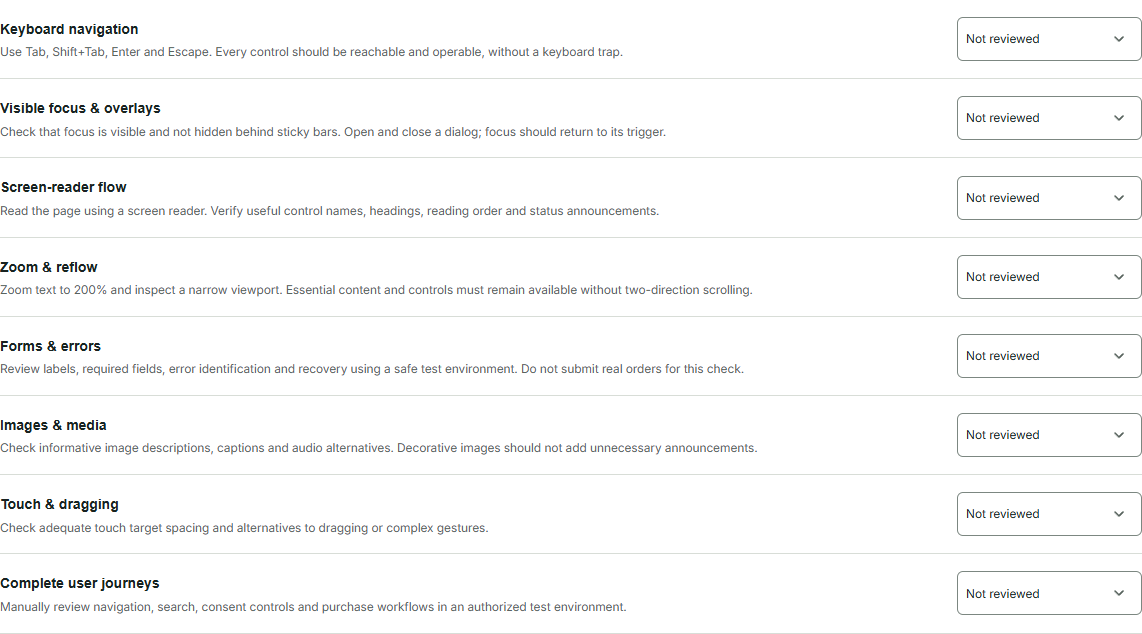
The W3C guidance on evaluation tools explains that some checks require human evaluation and cannot be fully automated. That is why an automated result belongs alongside manual review. A passed scan should not be presented as ADA certification or proof that every visitor can complete every task on the site.
For the workshop page, follow the booking journey using the keyboard. Observe where focus goes, whether you can understand the active control and whether you can proceed through the required steps. Review the content with relevant assistive technology and appropriate expertise where needed. Keep the review attached to real tasks rather than reducing accessibility to a score someone wants to improve before Friday.
Inspect states that the initial scan did not reach. An expanded accordion, a menu, validation feedback or a booking dialog may behave differently from the page at rest. Record which states have been reviewed and which remain open. This is especially helpful when a repair affects a shared component that appears on several pages.
When a finding is marked for review, investigate rather than guessing. If a rule requires context, provide that context to the person assessing it. The objective is a better experience for people, including those using different input methods and assistive technologies. Removing an inconvenient label from a report is only useful when it reflects a real, verified correction.
Build a repair list that somebody can actually finish
For each chosen repair, include the URL, observed condition, affected element, proposed outcome and person responsible. Add the evidence that supports the observation. A useful task might say that a booking icon lacks an understandable accessible name and identify the exact control. That is much easier to implement and verify than “fix accessibility on the class page.”
Separate the desired outcome from the proposed implementation. The desired outcome might be a clearly named booking control. The implementation depends on the component and its context. If you do not know the correct technical approach, state the user need and attach the evidence. You do not need to invent a code solution to write a good task.
Prioritize issues that obstruct the main task or affect a widely reused component. Then consider the evidence, effort and dependencies for other work. Avoid sorting exclusively by how dramatic a label looks. A modest-looking problem in the primary action may deserve attention before a cosmetic issue that appears in a rarely used corner of the page.
Give review items a decision owner. Someone should confirm whether the canonical target is correct, whether the image is decorative or whether the page is intentionally excluded from search. These are not necessarily coding tasks. Treating every unresolved decision as a development bug can produce unnecessary edits and still leave the original question unanswered.
Define how you will verify completion. Recheck the relevant automated finding, inspect the rendered page and test the affected journey. If a shared template changed, sample the other pages that use it. A repair is ready when the intended behavior is verified, not merely when the person assigned to it has moved the card to a more reassuring column.
Work through a realistic workshop-page example
Imagine the inspection shows three items needing attention: a missing language declaration, a canonical target requiring confirmation and an image without an alt attribute. These are hypothetical teaching findings, not results from a scanned customer site. Begin by locating each declaration or element and deciding who has the context to resolve it.
The language declaration can become a focused template task. The canonical target goes to the person responsible for the page’s indexing plan before anyone changes it. The image goes to an editor who can establish whether it communicates useful workshop information or simply decorates the section. Three report entries have now become three different, sensible next steps.
Suppose the speed report also points to a resource worth investigating. Add that investigation with its evidence and test environment. Do not promise a score increase before understanding the cause. The developer can examine the resource, propose a change and report the actual result. This keeps the team from announcing a performance victory while the repair is still a hypothesis.
Next, manually walk through the booking journey. If an issue appears only after opening the booking interface, create a separate observation that describes the steps. Do not imply the initial automated scan detected it. Both findings can belong to the same improvement project while retaining their different evidence sources.
After the changes, repeat the relevant check and the manual journey. Record what was fixed, what remains a deliberate decision and what needs further investigation. The result is a small, traceable improvement cycle. Nobody had to redesign the entire website because one afternoon’s report contained several unfamiliar words.
Export the evidence before it expires
Temporary results are useful for an immediate review, but they are not a permanent project archive. The checker provides Markdown, JSON and CSV downloads plus a print or PDF path. Choose the format that serves the person doing the work. A readable summary may suit an editor, while structured output may help someone organizing findings elsewhere.
Download only what you need and keep it with the corresponding task if you want to retain it. The tool does not automatically maintain a history of reports for you. This makes the retention choice explicit. It also means you should not promise a colleague that they can return next month to the same temporary result and find everything waiting there.
Include the test context with shared evidence. A cropped image of a score loses the URL, device, time and limitations that make the result interpretable. A short note explaining the inspected page and the question being investigated is often worth more than a larger screenshot. Evidence is useful when another person can understand what it refers to.
Avoid distributing unnecessary page details. If the report contains information that is not relevant to the repair, share the useful portion and the necessary context. The inspected page is public, but that does not mean every exported item belongs in every conversation. A focused handoff helps the recipient identify the action without sorting through unrelated material.
When the temporary result expires, a new run is a new observation. The page or environment may have changed. Label it accordingly rather than treating it as the recovery of the old result. This distinction is particularly helpful during an active release when several people are making changes close together.
Make before-and-after comparisons fair enough to be useful
Compare the same URL and device setting when assessing a specific change. Keep a note of what changed between runs. If the workshop page received a new hero, a script update and a revised booking interface at the same time, a score difference cannot tell you which change caused it. The comparison needs context before it can support a conclusion.
Look for resolution of the actual issue. If the task was to add an accurate label, inspect that control and rerun the relevant check. If the task concerned a resource, examine the resource evidence and measurements. Do not let an unrelated score movement distract from whether the planned repair achieved its intended result.
When measurements vary, resist selecting only the most flattering run. Investigate whether conditions, page content or third-party behavior changed. If you cannot establish a clear explanation, report the uncertainty. A careful statement that more evidence is needed is more useful than a confident claim built from whichever number arrived closest to the desired result.
Test for regressions around the changed area. A revised header may improve one finding while altering the mobile navigation. A replaced image may change the layout. A template edit may affect other pages. The follow-up should be proportionate to the scope of the change, with attention to the tasks visitors actually perform.
Schedule the review where people can act on it. The Campaign Time Zone Planner can help coordinate a release or follow-up across locations. Agree on the inspection window, responsible people and expected next step. A report delivered while everyone who can fix it is asleep is technically delivered, but not especially well timed.
Connect page repairs to content and campaign work
A technically tidy page may still leave important questions unanswered. Once the blocking issues are addressed, read the page as a prospective visitor. Does the workshop explain the experience, requirements and next action? Use the findings to support content improvements without assuming that a clean technical check guarantees a persuasive or complete page.
When accurate structured data is appropriate, the Website Schema Generator can help prepare markup based on real content. The checker’s JSON-LD syntax inspection and the generator serve related but different tasks. Neither is permission to add facts, reviews or claims that are absent from the actual business and visible page.
Prepare campaign destinations with the UTM, QR & Campaign Links tool after the page is ready for visitors. Test the final URL rather than only the clean base address. Campaign parameters should lead people to the intended page, and a printed QR code should still make sense when someone scans it outside the original launch moment.
Where connected sources permit, DTCUP Intelligence can help investigate orders, channels and journeys after release. Keep those business observations separate from claims about the inspection itself. A change in attributed orders does not prove that one technical repair caused the change. Campaign activity, audience, timing and other page changes may also matter.
Use the combined evidence to choose another practical improvement. Perhaps the next task is clearer content, a more understandable action or further performance investigation. The page checker is valuable because it gives the technical discussion a concrete starting point. It does not need to pretend to be a complete marketing department to be useful.
Make a small acceptance checklist for the next release
Turn the resolved findings into a short review habit. For the workshop page, the editor can confirm the page-specific title, accurate image descriptions and understandable section labels before asking for publication. The developer can verify the shared controls and relevant declarations. The owner can confirm that the booking promise and destination match the actual service. Each person reviews the part they are equipped to judge.
Keep the checklist short enough that people will use it. Include the recurring risks revealed by this page, rather than copying every possible web requirement into a document nobody opens. A meaningful check should have an observable outcome. “Review the page” is vague; “open the mobile booking action and confirm the intended destination” gives the reviewer a task that can be completed and reported.
Attach the checklist to the release process, not to one person’s memory. If a different editor publishes next month’s session, they should still know which checks matter. Explain the reason behind any unusual rule. A canonical decision or a deliberate exclusion is easier to preserve when the next person understands its purpose instead of encountering an unexplained setting that looks like a mistake.
When a new issue appears, improve the relevant check rather than adding an entire new bureaucracy. Perhaps image replacement needs an explicit mobile review, or a shared navigation change needs keyboard testing. The process should become clearer through use. It should not grow until publishing a corrected sentence requires a committee and a ceremonial password.
Finally, keep responsibility for the live outcome. A pre-release preview is useful, but the published page is what visitors receive. Verify the important changes after release in the actual public context. That final inspection connects the repair work to the experience it was meant to improve and gives everyone a concrete reason to close the task.
Know when to use this tool and when to go deeper
Use DTCUP’s checker for a quick, evidence-oriented review of a public page. The three perspectives share a straightforward input, and the result can become a repair list without requiring an account or email gate. That is helpful when you want to investigate a page before committing to a broader audit or involving additional specialists.
Compared with manually collecting separate initial observations, the combined workflow can reduce the effort of getting started. Its advantage is convenience and a common page context. It does not make the underlying checks omniscient, and it does not mean every alternative tool lacks similar capabilities. Choose the workflow according to the question and depth of evidence you need.
Use a broader approach when the task involves many templates, authenticated experiences, complete user journeys or ongoing monitoring. A single public-page inspection cannot cover those requirements by implication. You may need a site crawl, browser-based investigation, field performance evidence or specialist accessibility evaluation, depending on the actual question.
If a site blocks the scan, respect that result. Confirm the URL and public availability, then use an authorized review method suited to the site. Repeated attempts do not turn missing evidence into evidence. A clear statement that the tool could not inspect the page is more honest and useful than an invented score or a reassuring empty report.
Finish each review with a decision: repair now, investigate further, confirm as intentional or defer with a reason. That decision is the useful output. The numbers and labels help you reach it, but they are not the destination. Your website does not need a report that wins an argument; it needs changes that make the next visit work better.
Sources
Try a related toolWebsite Page Checker ↗
Still have a question?Ask the DTCUP Community ↗